
TEXAS LAW MODULE – SCHEDULE YOUR FINAL EXAM
To schedule your proctored exam, please follow the instructions and link below.
A. Install Google Chrome
Proctor 360 recommends using Google Chrome when taking the exam. If you don’t have the Google Chrome browser installed, you can install it here: https://www.google.com/chrome/.
B. Registration (If this is your first time taking an exam)

-
- Click on “Don’t have an account?” (This will change to “Already have an account?” when you check it during your first login.)
- Enter the required information.
- Click “Register“

4. Enter the authorization code sent to your email. This is the email you just entered.
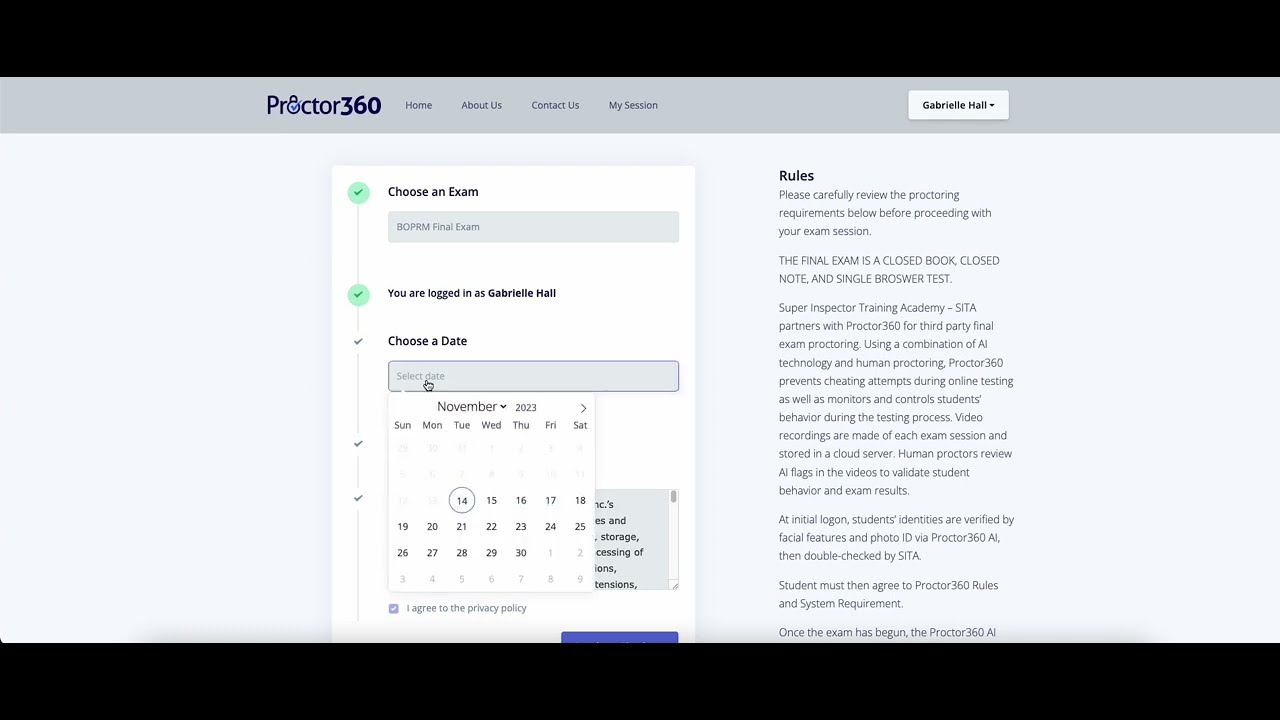
C. Schedule your exam (once you have registered)

1. Click on “Select date” and enter the date and time you want to take your exam. You will need to log in during that testing window.
2.Read the Privacy Policy and make sure that the checkbox next to “I agree to the privacy policy” is checked.
NOTE: You may select any available time slot. Time slots not available either occur in the past or are fully booked.
3. Click on “Ready to Checkout“. There is NO COST for your proctored exams. This is for other providers that do charge for proctored exams.

4. Click “Proceed to Payment“.
Again, there is NO COST for your proctored exams.
5. Follow the instructions that will be sent to the email address you entered during registration or logging in. The email will come from info@proctor360.com.
D. Install Chrome Proctor 360 Extension
During your System Requirements Check, you will be prompted to install a Chrome extension to take the exam. The steps to install the extension are below.


E. Completing your Exam and Closing the Exam Tab
- Once you have completed your exam, click on “Finish Quiz“.
- You may need to scroll to the top of the tab to end the exam session. Use the scroll bar on the far right to scroll to the top of the tab.

3. Click on “Close Session” to end the proctoring session.


4. You will then be notified that the Exam has been completed.

5. To ensure that the exam does not continue to record your screen, if you have any other tabs open (you should not have any other tabs open during your Proctored exam) you will need to click “Reload” to reload the other tabs. This ensures your privacy post-exam.
CLICK HERE TO SCHEDULE YOUR FINAL EXAM